Anything else like play services or play store?
Those should be the full google app, not stubs.
Did you signature spoof system framework
And try spoofing all ggl apps lmk if that helps
Originally I was just spoofing system framework. When I tried spoofing all google apps, that actually resulted in the described “select app” screen being shown,
but beyond that the flow was identical and resulted in the same error (I still can't install the AA4CAT module after the gApps one or it won't even get to that screen).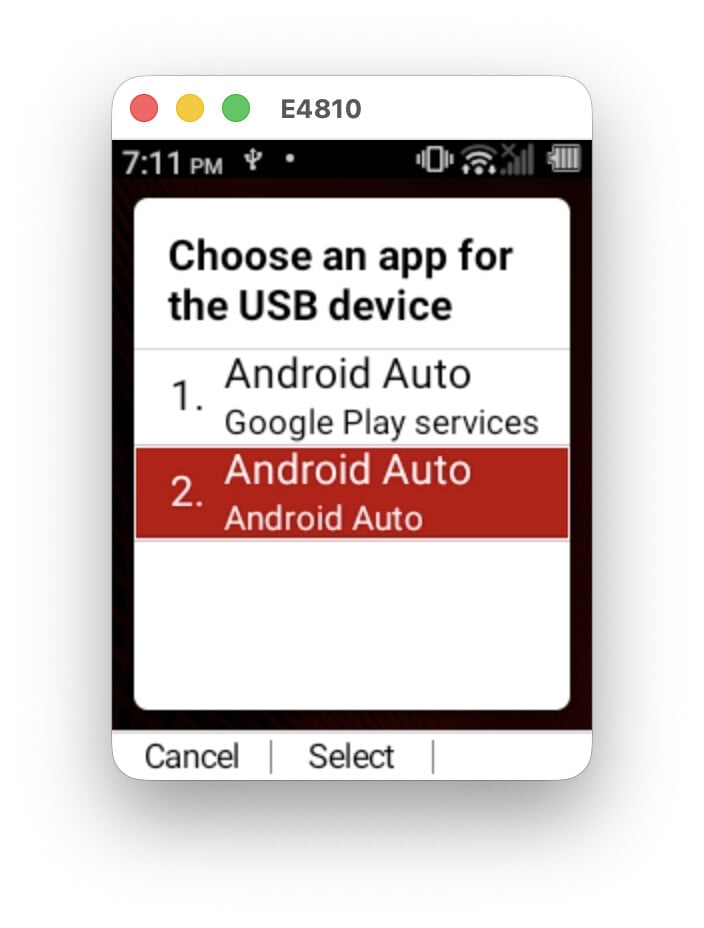
I do understand that it’s working on your phone; if you could share a firmware dump of your phone, that could be immensely helpful for us to figure out what your phone has right that others don’t.
Hey guys, I accidentally flashed a wrong file to the aboot partition of my E4810. Now, after inserting the microSD card with the file shared in the forum and then putting the battery in, the phone shows a green LED. When plugged into my computer, it appears as a device called “KYOCERA_Android” with the hardware ID “USB\VID_0482&PID_0AA4&REV_0100”. What should I do now to get into 9008 mode, or should I just throw this phone away? XD
You don’t want 9008 mode, you want what you used.
But even that is second rate.
I’ll figure out how to reply here I honestly don’t know how to.
Thanks for the reply!
However, I don’t really know how to recover the phone from its current mode (does it require a specific flashing tool?). Could you give me some more detailed instructions?
By the way, right after the phone was bricked, it showed up as a COM port when connected to the PC. It wasn’t until the next day when I reconnected it that it appeared as the current USB device. I’m quite curious about why this happened (I’m an Android noob, so please forgive me if this is a dumb question).
Looking forward to hearing from you.
@leobuskin to the rescue?
Take out the battery, keep the microsd in, turn it on and plug it in.
See if you see the below:
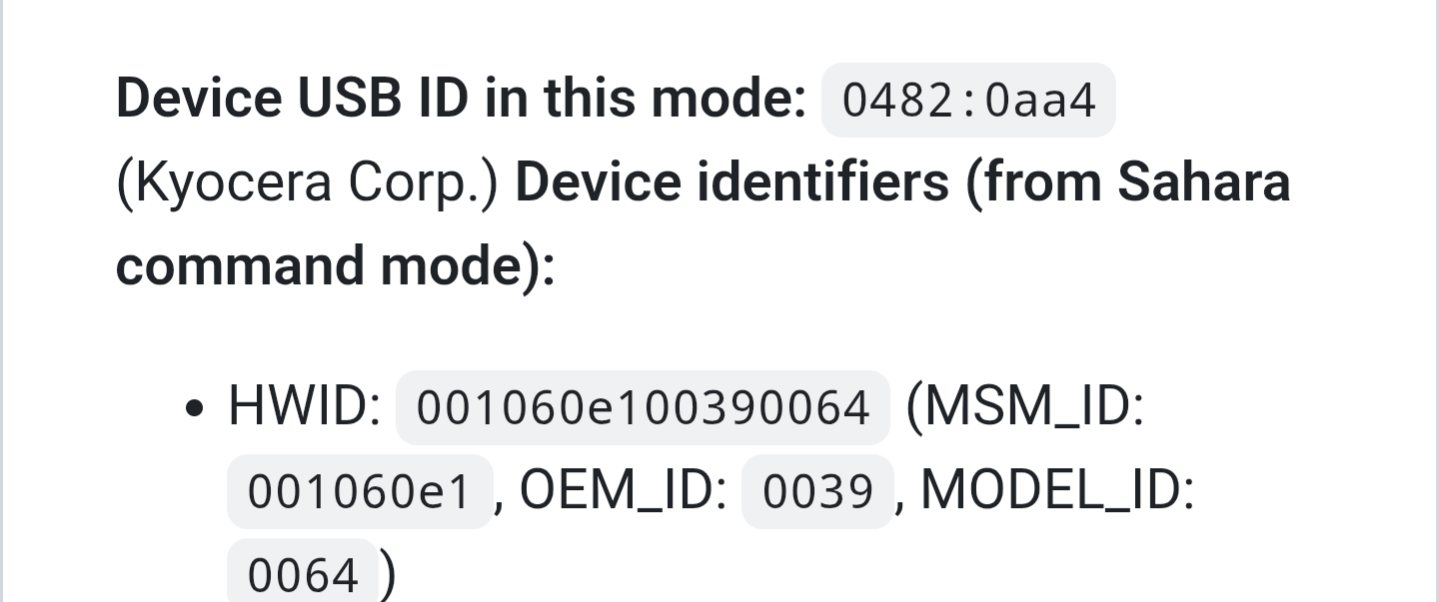
Edit:
This the same actually
It’s funny, normally ppl only brick with bl still accessible, you went further 
And @BenTorah - no response at all from your e4610? Don’t remember
It’s been a while, so forgive me if it doesn’t work, but you don’t really have anything to lose at this point
aboot_flasher.zip (6.1 KB)
- Pull battery out, reinsert, and boot with sdcard in.
- Unzip the file
- Run the below
pip install pyusb

./aboot_flasher.py aboot_a /path/to/aboot.img
./aboot_flasher.py aboot_b /path/to/aboot.img
Flash aboot from unzipped binfile66 or:
Let me know if all good. If not, tell me what went wrong.
This is for aboot only, rewritten just for that.
Credits:
- @leobuskin: Kyocera vendor command protocol, sahara handshake, GPT parsing, checksum algorithm, sd card trigger discovery (from e4610)
- Me: E4810 write sequence, validation
3 Likes
4610 only, your 4810 is a bit different beast, I don’t like it
2 Likes
@sdaf any news?
Hi ,
Thank you for your help. I tried running the script you provided, but I’m encountering an issue during the write protection removal step.
I added some debug statements to the vendor_cmd_ab_clear_write_protect function to troubleshoot the communication. It seems like the device is failing to respond, resulting in a timeout.
Here is the debug code I added:
def vendor_cmd_ab_clear_write_protect(self, lba, byte_count):
        self.drain_in('pre')
        data = struct.pack("<IIII", 0xAB, 16, lba, byte_count)
        if not self._cdc.write(data):
            logger.debug("USB Write Failed during clear write protect")
            return False

        resp = self._cdc.read(16)

        logger.debug(f"Raw response: {resp.hex() if resp else 'No response (Timeout)'}")

        if len(resp) == 16:
            cmd_id = struct.unpack("<I", resp[0:4])[0]
            if cmd_id == 0xAC:
                return True
        return False
And here is the output I received:
C:\Users\sun12\Documents>python aboot_flasher.py aboot_b C:\Users\sun12\Documents\aboot.img --verbose
INFO: Reading GPT...
INFO: Partition: aboot_b @ LBA 1002496, 1048576 bytes
INFO: Local checksum: 0x5fc4e75c
INFO: Clearing write protection...
DEBUG: Raw response: No response (Timeout)
ERROR: Failed to clear write protection
Could you take a look at this when you have a moment? I’d really appreciate any ideas on what might be causing the timeout. Thanks again for your help 
Gotta charge up my Kyocera. I’ll let you know
2 Likes
@sdaf seems like aboot flashing did not need the full sequence for some reason. I’ve only ever flashed other partitions until now, or maybe my documentation is wrong at some parts, dunno.
aboot_flasher_v2.zip (6.1 KB)
INFO: Reading GPT...
INFO: Partition: aboot_a @ LBA 1000448, 1048576 bytes
INFO: Local checksum: 0x5fc4e75c
INFO: Writing 1048576 bytes...
INFO: Verifying checksum...
INFO: Remote checksum: 0x5fc4e75c
INFO: Flash complete and verified
3 Likes
Huge thanks for sharing this! I just followed your instructions, and my 4810 is back to life. Everything worked perfectly 
3 Likes
Nice
1 Like
OK, I finally got Android Auto working! After much troubleshooting with Claude, it seems like the “No apps can perform this action” screen of death experienced by me and @BenTorah is caused by a broken FRX (the AA onboarding flow). This was fixed by customizing the Magisk module to disable FRX.
There was also an issue with missing permissions for both the AA app and GMS, so I’ve included instructions below to grant all of those.
Here’s my workflow (assumes you already have the phone rooted with Magisk).
1. Install the modules
Install the gApps (mindtheGapps) and the customized Kyocera-AA modules (a modified version of @NotABird 's CAT S22 module) at the same time. This prevents the phone from downloading an Android Go version of GMS that isn’t compatible with Android Auto.
2. Update Play Services
After rebooting the phone, you have to update Play Services. I wasn’t able to find the app inside the Google Play Store, so you can just run this command:
adb shell am start -a android.intent.action.VIEW -d "market://details?id=com.google.android.gms"
You’ll have to sign in to Google first.
3. Trigger the Android Auto install
After updating Play Services, plug the phone into a car. You should get a prompt asking you to choose an app to launch, select Android Auto, not Google Play Services. After that you should see a screen that says “Android Auto is available in this car”. There might not be any visible button — just scroll down to the bottom and press. That should start downloading and installing Android Auto.
After it finishes installing, the screen should disappear. Don’t worry; that just means it’s time for the next step.
4. Manually grant permissions
Since there’s no onboarding step (FRX is disabled), you have to manually grant all the permissions for GMS and AA.
Android Auto (gearhead):
adb shell pm grant com.google.android.projection.gearhead android.permission.ACCESS_FINE_LOCATION
adb shell pm grant com.google.android.projection.gearhead android.permission.ACCESS_COARSE_LOCATION
adb shell pm grant com.google.android.projection.gearhead android.permission.READ_PHONE_STATE
adb shell pm grant com.google.android.projection.gearhead android.permission.CALL_PHONE
adb shell pm grant com.google.android.projection.gearhead android.permission.READ_CALL_LOG
adb shell pm grant com.google.android.projection.gearhead android.permission.READ_CONTACTS
adb shell pm grant com.google.android.projection.gearhead android.permission.READ_CALENDAR
adb shell pm grant com.google.android.projection.gearhead android.permission.RECORD_AUDIO
adb shell pm grant com.google.android.projection.gearhead android.permission.SEND_SMS
adb shell pm grant com.google.android.projection.gearhead android.permission.RECEIVE_SMS
Google Play Services (GMS):
adb shell pm grant com.google.android.gms android.permission.RECORD_AUDIO
adb shell pm grant com.google.android.gms android.permission.READ_PHONE_STATE
adb shell pm grant com.google.android.gms android.permission.ACCESS_FINE_LOCATION
5. Plug back in
Plug back into a car.
This time, Android Auto should launch!
kyocera-androidauto-aa-fixed.zip (2.0 MB)
10 Likes