I believe there is a separate contact sync app that needs to be installed in priv-app
2 Likes
Great work. I didn’t encounter any of those screens, so you may either be ahead of or behind my now-stagnant progress.
Here’s what I’ve achieved thus far with the DHU running.
Keep in mind, you need the non-Go version of Play Services. I will assume this is the default shipped with microG GmsCore.
Logcat may have some helpful information as to what’s failing exactly.
As Creed mentioned, you need the Contacts and Calendar sync adapters for that to work. microG does not include them by default. There are modules that install them as priv-apps, but I could not get them to work with microG.
MindTheGapps (via Magisk module) worked on & off IIRC.
2 Likes
If this is useful, here are my notes from the last attempt
could be bc
getprop ro.config.low_ram= true
see if nikgapps for android 10 has anything special for AA
- different file structure than what I’m used to, but from what I can tell, some special stuff
trying stock system image with magiskgapps with aa4mg as Magisk modules
- removed /system/priv-app/SetupWizard to prevent crashes before converting the MindTheGapps package to Magisk module
- install aa4mg-v0.6.3.zip Magisk module
- NICE! all working just like custom system.img
- check Android Auto status as system app (App Manager)
- let Google Play update itself
- reboot
- install Aurora Store
- In settings, use Root installer in Installation → “Installation method” to “install as Google Play Store” (grant root when requested)
- install Android Auto
- if it says “could not get files” error when tapping Update, log in to Aurora store with google account (will need to clear app data and relaunch)
- ^ this didn’t work. AA app via play store delivery discontinued?
- allow all permissions in app
checking if maybe mindthegapps android 10 has more AA related stuff built in to it vs android 9 version I’ve been working with
test downgrade latest gapps, change
getprop ro.config.low_ram= false, and update via google play.
- use
resetprop- otherwise it downloads 110300 variant of gms for android go which doesn’t include car.FirstActivity
- see if now 100300 is used
- great, IT IS (26.19.62 (100300-919969992))
for persistance:su echo '#!/system/bin/sh' > /data/adb/post-fs-data.d/force_normalram.sh echo 'resetprop ro.config.low_ram false' >> /data/adb/post-fs-data.d/force_normalram.sh chmod 755 /data/adb/post-fs-data.d/force_normalram.shthen rebooted
then cleared play store app data
then went to play services page (via Aurora) in play store and updated
- old AA version was causing issues. installed latest(?) version:
com.google.android.projection.gearhead_16.8.661803-release-168661803_1arch_2dpi_24lang_eb9949a07b65feb8793dc857e4f5f08d_apkmirror.com.apkmvia SAI
- enabled “Unknown sources in AA dev menu”
- great, that worked.
on to getting AA itself to work…:
- ~ adb shell cmd notification allow_listener com.google.android.projection.gearhead/com.google.android.projection.gearhead.companion.NotificationAccessService
~ adb shell svc bluetooth enable
~ adb shell appops set com.google.android.projection.gearhead WRITE_SETTINGS allow KILL х
adb shell appops set com.google.android.gms WRITE_SETTINGS allowRE it?
 ~  adb shell settings put secure enabled_notification_listeners "com.google.android.projection.gearhead/com.google.android.projection.gearhead.companion.NotificationAccessService:com.google.android.gms/com.google.android.gms.car.CarNotificationListener"
 ~  adb shell settings get secure enabled_notification_listeners                               ✔
com.google.android.projection.gearhead/com.google.android.projection.gearhead.companion.NotificationAccessService:com.google.android.gms/com.google.android.gms.car.CarNotificationListener
 ~  adb shell svc bluetooth enable                                                             ✔
adb shell settings put global bluetooth_on 1
maybe, in fact, heed the message and install latest google, etc…
Make sure you have the most recent versions of Google App, Google Maps, Google Text-to-speech, Android Auto installed on your phone, and try again.re-added google acct bc of auth issue
- can’t install speech recog…
- gonna have to use tts stub with compatible version
- but first see if its even the issue by bypassing sig verification and use tts from play store
- aa stub sig matches from play store
- maps stub is signed using testkey…?? (
61ed377e85d386a8dfee6b864bd85b0bfaa5af81)
- testing if fails to install updated version atop of stub… IT DOES but no sig mismatch, but rather version downgrade issue
- stub has build # 2100000000 for some reason (latest play store official app is 1068590324)
- UPDATE: yes because it’s a stub. non-official.
- get tts stub from opengapps arm 9.0 package instead
- wait, they’re (maps, tts) not meant to run… just be there to satisfy AA… but it’s not satisfied
ok… new plan:
- uninstall old app updates for the stubs and reinstall aa4mg
- don’t install maps, tts, and google stubs when prompted
- allow installation of the AA stub
- install the actual apps later from play store (google search [update], google tts, google maps)
- install android auto APK/APKM from APKMirror via SAI (I used
com.google.android.projection.gearhead_16.8.661853-release-168661853_1arch_1dpi_24lang_0a1f4525f9336ab8a04e02e969a27252_apkmirror.com.apkm- latest for arch7)- may need to uninstall tts stub via App Manager (may have just been left over from my previous aa4mg setup)
- if something doesn’t work, try launching the downloaded gapps
- see to install AA thru aurora store
enough for today.
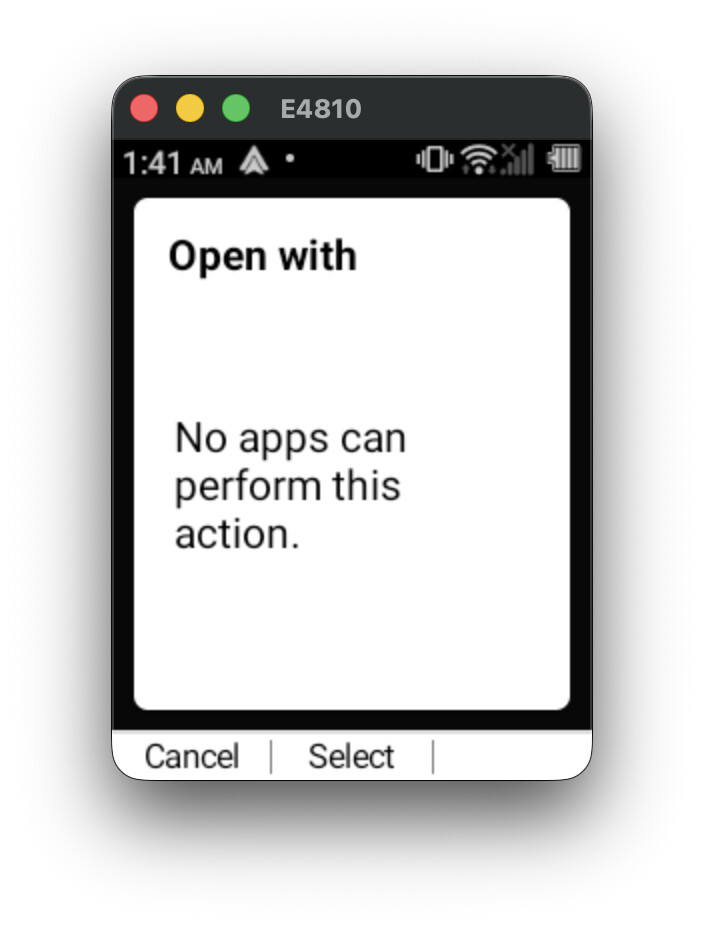
quick lick: can reproduce open with popup error witham start -a com.google.android.gms.RECOVER_PERMISSION -p com.google.android.gms

2 Likes
Step 1: Enable Zygisk in Magisk
- Open the Magisk app on your phone.
- Tap the settings gear icon in the top right corner.
- Toggle the switch to enable Zygisk.
- Reboot your phone to apply the change.
Step 2: Prepare and Install GApps
- Download MindTheGaps for Android 9 (ARM).
- Convert the downloaded GApps package into a Magisk module using Magisk GApps Maker.
- Flash the newly created GApps module via Magisk and reboot your device.
Step 3: Install LSPosed Framework
- Install the LSPosed (Zygisk) module through Magisk.
- Reboot your phone to activate the framework.
Step 4: Install and Enable XSpoof
- Download and install the XSpoof module
- Enable the XSpoof module inside the LSPosed app settings.
- Select the target apps (like system framework) that need signature spoofing.
- Reboot your phone to apply the spoofing modifications.
Step 5: Update Core Services
- Open the Google Play Store.
- Update Google Play Services to the latest version.
Step 6: Install Android Auto Modifications
- Download and install the AA4cat Magisk module from “not a bird” . Cat S22 Flip Android Auto Magisk Module jtech READ THAT POST REGARDING INFO ON THAT “IMPORTANT”
- Reboot your device to activate the module.
Step 7: Vehicle Connection and App Setup
- Connect your phone to your car’s infotainment system.
in the pop up select android auto NOT google play services - Follow all on-screen setup prompts on your phone and car screen.
- Install the Android Auto companion app when prompted.
- Grant all required permissions (Location, Notifications, notification access etc.).
follow steps to update ggl app and to install maps and tts
THIS WORKS
note you can install fake tts and fake maps will work too
wireless will work only if your car hotspot is 4.6 GHz not 5g
i think big part can be made in to 1 Magisk module
and also debloat the g apps package to only what’s needed
9 Likes
Amazing, Can you post links?
which apps need signature spoofing?
Does anyone have the magisk gapps module already made and can share it? I’m having trouble with the magiskgappsmaker site.
Be sure to delete SetupWizard from the mindthegapps package before uploading
I have a copy. Having trouble uploading at the moment
Whichever apps that use stubs
nvm, I just used ai to do it myself
Files will be here for 1 week
to big to upload on forum
https://limewire.com/d/hZjOv#Ag8ag97zRw
Has anyone else gotten this to work? I’m not getting further with this method than I have before. I’ve tried 3 times from factory reset, it just goes to the “no apps are compatible with this USB accessory.”
@BenTorah
That’s weird
are you following all the steps ?
did it multiple times and worked !
did you use the files i uploaded?
did you update all goggle apps in play store?
did you allow all permissions in goggle play services?
don’t know what you are doing wrong
i think i included all the info…
I followed the steps best I could and did it both using your files and without. Each time, the phone would get to an Android Auto screen, and I would be able to install Android Auto; but after that any time I would plug in the phone it would give me the “No installed apps work with this USB accessory” message.
Although there were a few ambiguities in the guide. First off, I never saw any option to update Play Services in settings. I had to get to the page manually using this command: adb shell am start -a android.intent.action.VIEW -d "market://details?id=com.google.android.gms" (also, my Play Store auto-updated to the latest version, I assume that’s normal). Secondly, I wasn’t sure if I should follow the guide for the CAT AA module, where it says to install AA from the play store before plugging into the car. However, that decision was moot because when I tried that, the install failed. Lastly, after plugging in the phone, I didn’t get a popup to choose between AA & Google Play Services. Just the install AA screen (listed below), and I didn’t get to the point of granting all the permissions (is there a specific way of doing that?).
Thank you for your guide, but I’m not sure what I’m missing here.
Other random details: I’m doing this with a E4180NC (no camera), that’s been updated to the stock firmware listed earlier in this thread, from a Mac.
###UPDATE:
So I’ve gotten a bit further. The most successful I’ve gotten has been when I tried installing all 3 magisk modules at once and then rebooting the phone. Then the android auto screen shows up consistently when I plug in the phone, but after clicking through the screens, I get a screen that says “open with - no apps can perform this function”, and then an Android Auto error. (I also used activity launcher to grant the android auto permissions- didn’t help.) Is this something you’re familiar with?
We could use more details. What version of AA does your phone have?
Congrats, you’ve encountered this issue
2 Likes
are you getting stuck by allowing notification access?
not sure where your getting stuck
can you check by - settings/ developer/ advanced/ apps & notifications/ advanced/ special app access / notification access
or you can use activity launcher to get there faster 
tell me if you can select android auto there and toggle it on
and if you update google play services before adding the AA4CAT
you should get the pop up when connected to hu to select ggl play services or android auto
working for me for over a month so I’m not sure where the issue is
did it once then factory reset my phone did it again and still working…
I realized that- which is why I was wondering if you’d got it working, and if you did anything to get around it.
Notification access is enabled.
Unfortunately, if I update play services and then enable the AA4CAT module, that causes the earlier failure of “No installed apps are compatible with this USB accessory”. I got furthest when I enabled all 3 Magisk modules at once. Though notably, before I get that error, I get a message that “my device is not compatible”
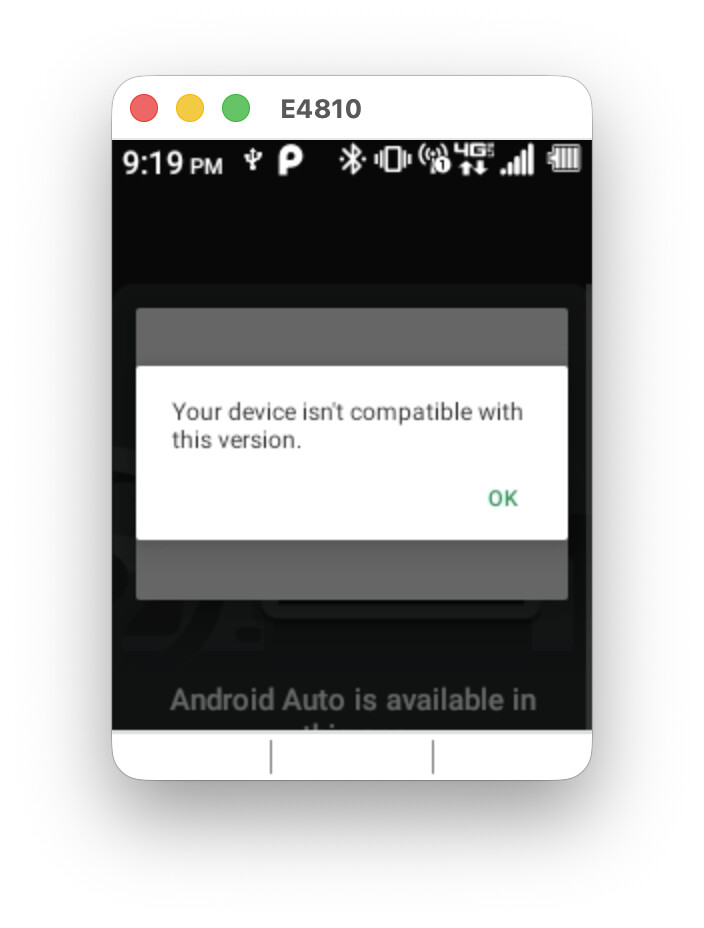
I then have to go and install android auto from the Play Store, after which the “No apps are compatible…” message appears.
Can you kindly provide us with a full firmware dump of your device (excluding userdata, please)?
1 Like
which apps is that?
That would be maps, google, and tts (depending on how you set up your install)